Start here • All roles
Learn PlanCrAI in the order you’ll use it
Use Quick Start to open your workspace, add optional features when you need them, then follow a job from first contact through closeout. Search for any specific task.
PlanCrAI offers light and dark appearance. The steps are the same in either mode; use the Light button here to change this guide’s appearance. The appearance button in the app displays the mode you can switch to.
Set up only what you need to begin
Complete the company essentials in Quick Start and open your workspace. Invite teammates and connect email, accounting, and company resources from Settings when you need them.
One person handles sales, scheduling, installation, accounting, and follow-up. The guide keeps the handoffs visible without asking you to switch people.
Two or three people cover several responsibilities. Follow each person’s hats and verify each handoff.
Use dedicated dashboards when people have distinct roles, with clear assignment and handoffs through the same job.
Choose multi-hat if people cover more than one job; choose the dedicated-team path when each person works from an assigned dashboard. The individual Sales, Setter, Installer, Accounting, and Admin tabs explain those roles in detail.
Your first job, one step at a time
Start with a customer, capture the room, confirm the plan and choices, prepare the agreement, then follow the handoffs through installation and accounting.
First job / Customer record • Sales and solo
Find the complete customer record
Use one packet to review the appointment, photos, drawings, proposal, contract, and handoff history before you continue the job.
From your customer list, choose the customer and open Customer Summary.
Tap the orange Open Complete Customer Packet button shown in the screenshot.
Use Open This Record beside Appointment Record, Photos & AI Summary, or Drawings when you need one item.
If an expected record is missing, return to the job and confirm that step was saved. The final guide will link to the exact recovery task.
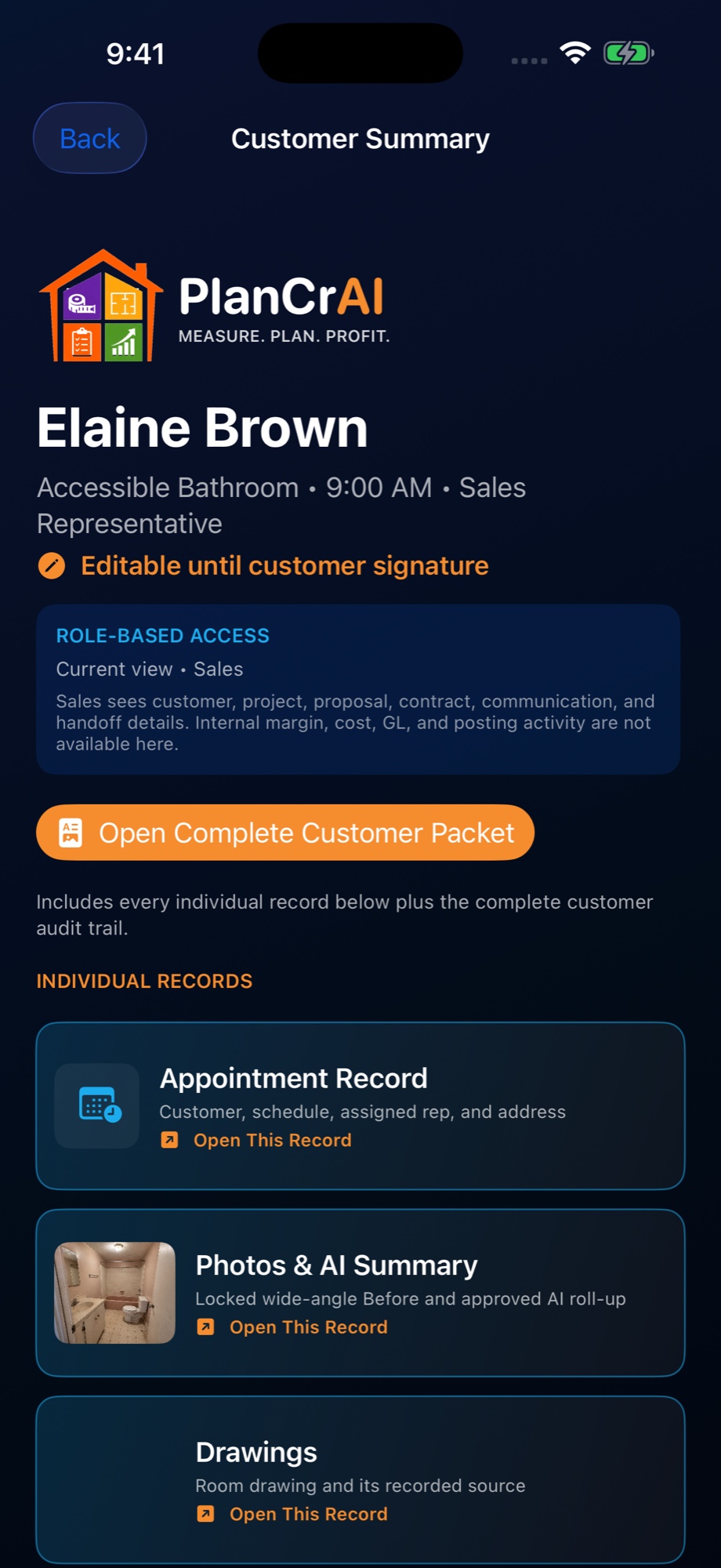
SAMPLE: this candidate shows the described buttons but has not been verified on build 1461. Use the written labels as a reference only.
Account / Billing • Workspace owner
Understand your trial and plan
Your 14-day trial needs no card. Review team size and Apple’s price before you choose a paid subscription.
In your workspace’s Account area, choose Subscription & Billing. Only the workspace owner sees its purchase controls.
The sheet shows Team size: 1 user in this example. Use + when you need to review a larger plan.
The sample says Your free trial is active; paid checkout is unavailable until the trial ends. No charge starts automatically.
The purchase button is disabled in this active-trial example. Its state changes with the account’s eligibility.
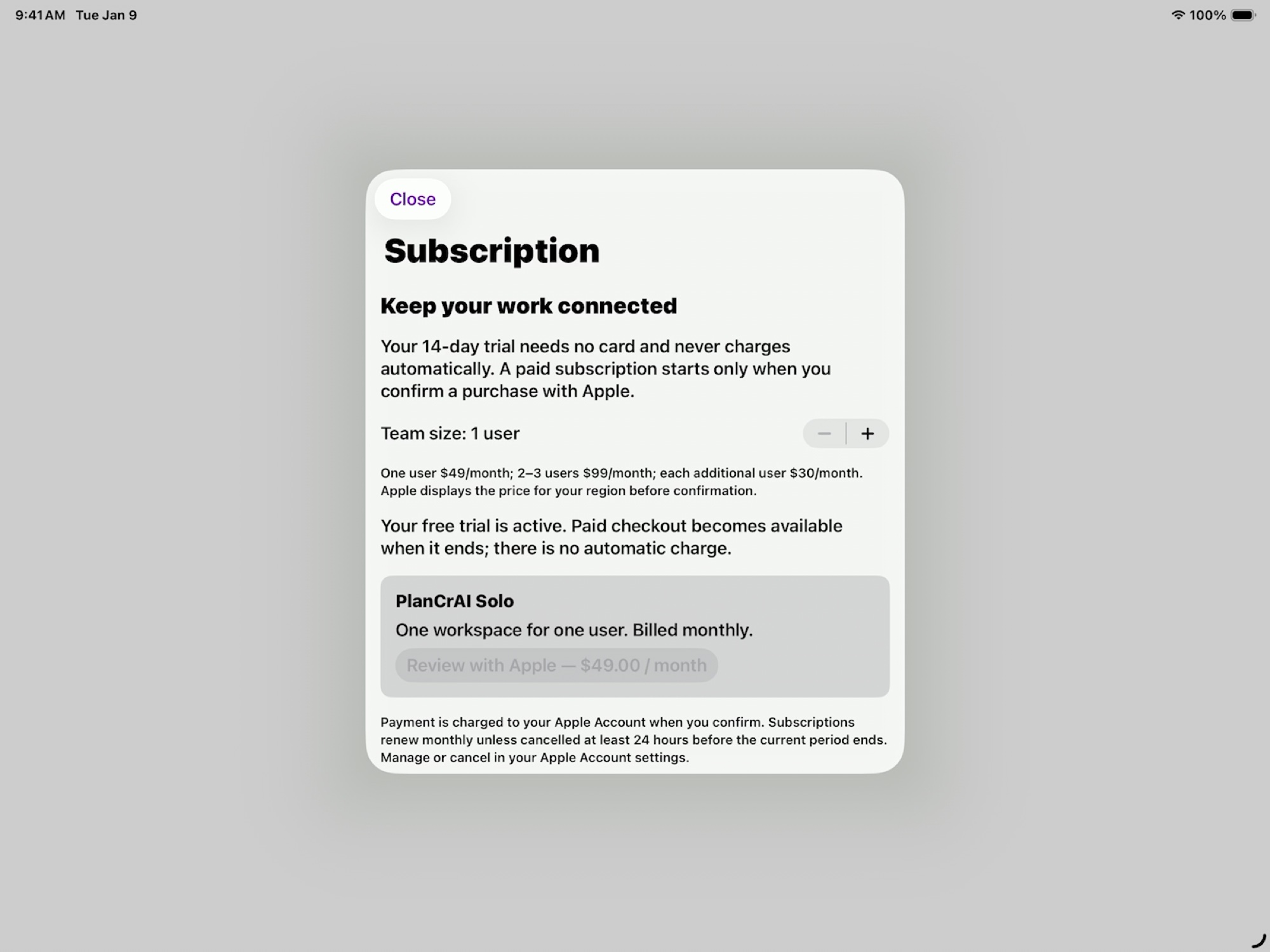
The guide describes only the visible state. It does not imply that checkout is available during an active trial.
Each page explains what to do, what you should see afterward, and what to check if you get stuck. You can search for a single task instead.
Working draft: no task is marked ready until its words, role, device, and screenshot match the same app build.